The phenomenon of reduced audio clarity emanating from an iPhone loudspeaker manifests as a diminished high-frequency response and reduced overall volume. This aural experience can arise due to various factors affecting the speaker’s ability to reproduce sound accurately. An example would be listening to music or a podcast on an iPhone and noticing the vocals are difficult to understand or the music sounds flat.
Addressing degraded speaker performance is important because clear audio is fundamental to effective communication, entertainment, and device usability. Historically, issues with smartphone speaker clarity have prompted users to seek repairs, replacements, or explore third-party audio solutions. Resolving such problems extends the lifespan of the device and improves the user experience.
The following sections will delve into the primary causes contributing to the observed auditory impairment, including physical obstructions, software anomalies, and hardware malfunctions. Further, the article will provide specific diagnostic steps and potential remedies to restore optimal audio output.
Addressing Suboptimal iPhone Loudspeaker Audio
Improving iPhone loudspeaker audio quality requires systematic troubleshooting and appropriate corrective actions. The following tips provide a structured approach to diagnosing and potentially resolving the muffled sound issue.
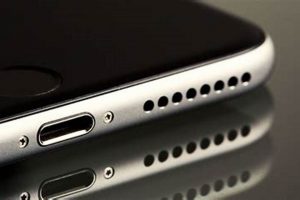
Tip 1: Physical Obstruction Inspection. Carefully examine the speaker grilles for any visible debris, lint, or other foreign materials. Use a soft, dry brush or compressed air to gently remove any obstructions. An accumulation of particulate matter can significantly impede sound transmission.
Tip 2: Volume Level Verification. Ensure the device volume is set to an audible level. Also, check if the volume limit is enabled in the Settings menu. If so, disabling the option may improve the output audio.
Tip 3: Software Restart. Perform a hard reset of the iPhone. This action clears temporary files and processes that could be interfering with audio output. Press and quickly release the volume up button, press and quickly release the volume down button, then press and hold the side button. When the Apple logo appears, release the side button.
Tip 4: Audio Settings Review. Navigate to the Accessibility settings and examine the ‘Phone Noise Cancellation’ feature. In certain scenarios, disabling this setting may improve speaker quality during calls.
Tip 5: Bluetooth Disconnection. Confirm the iPhone is not connected to any Bluetooth audio devices. Even if not actively playing, a Bluetooth connection can sometimes route audio output incorrectly.
Tip 6: Water Damage Assessment. Inspect the device for any signs of water intrusion. Even minimal water damage can degrade speaker performance. If suspected, consult a professional repair service.
Tip 7: Operating System Update. Ensure the iPhone is running the latest version of iOS. Software updates often include bug fixes and performance enhancements that can positively impact audio output.
Following these tips should improve the clarity and volume of the iPhone loudspeaker. If the problem persists, it may indicate a hardware failure requiring professional diagnosis and potential repair.
The concluding section of this article will provide information on when professional repair intervention becomes necessary.
1. Debris accumulation

Debris accumulation is a common cause of diminished audio quality in iPhone loudspeakers. Microscopic particles and larger fragments can obstruct the speaker diaphragm, impeding its ability to vibrate freely and accurately reproduce sound. This section details how various types of debris impact audio performance.
- Material Composition Impact
The type of debris affects the severity of audio muffling. Lint and dust, being lightweight, primarily dampen higher frequencies, resulting in a loss of clarity in speech and treble ranges. Metallic particles, while less common, pose a greater threat due to their potential to cause physical damage to the delicate speaker components. For example, a small metal shaving lodged within the speaker can create a rattling sound at certain frequencies and potentially damage the diaphragm.
- Location and Density Significance
The specific location and density of the debris accumulation are critical factors. Debris concentrated directly over the speaker diaphragm significantly reduces its ability to vibrate. Conversely, a thin layer of debris distributed evenly across the grille may have a less pronounced effect. For instance, a compacted layer of dust within the mesh covering the speaker opening acts as a filter, attenuating sound, which reduces the volume and affects the clarity.
- Ingress Pathways and Prevention
Understanding how debris enters the device is essential for preventative measures. Pockets, bags, and environments with high particulate matter concentrations are primary sources. Proactive measures involve regular cleaning with soft brushes and avoiding exposure to dusty or lint-filled areas. For example, consistently cleaning the speaker grilles after carrying an iPhone in a pocket can minimize the build-up of fabric lint.
- Diagnostic Techniques and Remediation
Diagnosing debris accumulation typically involves visual inspection using magnification. Remediation strategies range from gentle brushing to the use of specialized cleaning tools. Compressed air can dislodge particles, but caution is necessary to avoid forcing debris further into the device. In severe cases, professional disassembly and cleaning may be required. For example, using a small, anti-static brush to gently remove packed debris from the speaker grille is an effective initial step.
In summary, debris accumulation affects audio fidelity by physically interfering with speaker diaphragm movement. Understanding the material composition, location, ingress pathways, and effective diagnostic and remediation techniques provides a comprehensive approach to addressing this common source of compromised iPhone loudspeaker audio.
2. Software glitches

Software anomalies, broadly categorized as glitches, represent a significant, though often overlooked, contributor to degraded iPhone speaker performance. The operational processes of the iPhone’s audio subsystem are intrinsically linked to software controls; deviations from expected software behavior can manifest as a muffled or distorted audio output. Such glitches encompass a range of issues, from corrupted audio codecs to misconfigured system settings that inadvertently attenuate or filter sound frequencies. An example includes a flawed audio driver that incorrectly processes the digital signal, leading to reduced volume and a lack of clarity. In these instances, the speaker itself may be functioning correctly, but the signal it receives is compromised due to software-related factors.
The impact of software glitches extends beyond simple audio degradation. Persistent software issues can trigger memory leaks within the audio processing unit, further exacerbating performance problems and potentially leading to system instability. This emphasizes the need to differentiate between physical speaker damage and software-induced audio issues. Practical applications of this understanding lie in targeted troubleshooting efforts; instead of immediately assuming hardware failure, users can first explore software-based solutions, such as restarting the device, updating the operating system, or resetting audio settings to their default configurations. Moreover, developers can leverage this knowledge to optimize audio processing algorithms, minimizing the risk of software glitches that negatively impact speaker performance.
In summary, software glitches constitute a crucial component of potential causes behind muffled iPhone speaker audio. Recognizing the interplay between software and hardware is essential for effective diagnosis and remediation. While hardware issues necessitate physical repairs, software-related problems often can be resolved through user intervention or software updates. A thorough understanding of these dynamics ultimately empowers users to address audio performance issues methodically and efficiently, while informing software developers about crucial areas of improvement.
3. Hardware damage
Physical harm to the internal speaker components represents a primary cause of diminished sound quality, resulting in muffled or distorted audio output. This damage encompasses a spectrum of potential issues, ranging from subtle membrane tears to complete driver failure, each with a distinct impact on acoustic performance. Compromised speaker cones can lose their rigidity, leading to imprecise sound reproduction and a reduced overall volume. For example, a drop impact can cause hairline fractures in the speaker diaphragm, resulting in a buzzing or rattling sound, alongside a general decrease in audio clarity. The degree of impairment directly correlates to the extent and location of the physical damage within the speaker assembly. Understanding the specific types of hardware damage and their effects is crucial for accurate diagnosis and appropriate repair strategies.
The consequence of compromised hardware extends beyond mere audio distortion. In severe instances, electrical shorts within the speaker coil can lead to power drain and potential damage to the device’s amplifier circuit. Moreover, prolonged operation with a damaged speaker may exacerbate the initial impairment, accelerating further degradation of the component. Consider the instance where water intrusion corrodes the speaker coil connections; this can progressively increase resistance, reducing the current flow to the speaker and leading to a gradual decline in volume until complete failure occurs. Recognizing the progressive nature of hardware damage allows for timely intervention, preventing more extensive and costly repairs. Professional assessment and repair are often necessary to address these issues comprehensively.
In summary, hardware damage stands as a critical determinant in the reduction of audio fidelity. The nature and extent of physical harm directly impact the speaker’s ability to accurately reproduce sound, manifesting as muffled output or complete failure. Recognizing the potential for progressive deterioration underscores the importance of prompt professional evaluation and repair. By understanding the underlying causes and effects of hardware damage, users can make informed decisions regarding device maintenance and repair, ultimately preserving the optimal functionality of the iPhone loudspeaker.
4. Volume limitation

Volume limitation, as a software-imposed constraint on maximum audio output, can contribute to the perception of a muffled iPhone speaker, especially in environments with ambient noise. This limitation, designed to protect hearing, can inadvertently mask subtle audio details and reduce overall clarity.
- Hearing Protection Mechanisms
Many jurisdictions mandate volume limits on portable devices to mitigate the risk of noise-induced hearing loss. iPhones incorporate such safeguards, often restricting the maximum decibel level. While beneficial for long-term auditory health, these restrictions can create the impression of muffled sound, as the speaker never reaches its full potential output. For example, in a noisy train or bus, the capped volume may be insufficient to overcome background noise, leading the user to perceive a lack of clarity.
- EQ Adjustments at Lower Volumes
At reduced volumes, the human ear is less sensitive to bass and treble frequencies. To compensate, some audio systems dynamically adjust the equalization curve, boosting these frequencies at lower volume settings. However, if these adjustments are poorly implemented or absent, the audio may sound flat and muffled. For instance, if the iPhone’s software does not properly compensate for reduced low-frequency sensitivity at lower volumes, the bass response will be diminished, contributing to a perceived muddiness of the sound.
- Ambient Noise Perception
Perception of audio quality is significantly influenced by ambient noise levels. A volume limitation, combined with external noise, can effectively drown out quieter sound components, making the overall audio seem muffled. Consider a user attempting to listen to a podcast in a busy coffee shop; the mandated volume limit, coupled with the chatter and background music, could make the speaker sound noticeably muffled, even if it is functioning optimally within its restricted range.
- User-Configurable Volume Caps
In addition to system-wide volume limitations, users can set their own volume caps within the iPhone’s settings. If a user unknowingly sets an overly restrictive volume limit, it can exacerbate the perception of muffled sound. Regular audits of the device’s audio settings are essential to ensure that intentional volume caps are not contributing to the issue. For example, a parent restricting a childs iPhone volume could inadvertently cause music and videos to sound muffled.
Volume limitations, whether imposed by regulatory bodies, implemented by manufacturers, or set by individual users, can indirectly contribute to the perception of a muffled iPhone speaker. Understanding the interplay between these limitations, ambient noise, and the human ear’s frequency response is crucial for accurately diagnosing and addressing user complaints regarding reduced audio clarity.
5. Bluetooth Interference

Bluetooth interference can indirectly manifest as a perception of muffled sound originating from an iPhone speaker, despite the issue not directly stemming from the speaker itself. This phenomenon arises when the iPhone attempts to output audio through its built-in speaker while simultaneously maintaining a Bluetooth connection with another device. The underlying cause is that certain software routines or firmware configurations may, under specific conditions, reduce the speaker’s output volume or apply equalization settings optimized for Bluetooth audio, which are unsuitable for the built-in speaker. The result is reduced clarity and an impression of muffling. A typical scenario involves an iPhone connected to Bluetooth headphones; if the user disconnects the headphones but the iPhone does not fully revert to its default speaker output settings, the volume may be lower and the sound less clear than expected.
The practical significance of understanding this connection is that it allows users to quickly troubleshoot the source of diminished audio quality. Instead of immediately suspecting a hardware fault, users can verify whether Bluetooth is enabled and actively paired with a device. Disabling Bluetooth entirely or ensuring that the iPhone has correctly disconnected from all Bluetooth accessories may resolve the issue. For example, a user experiencing seemingly muffled audio should first check the Control Center to ensure that Bluetooth is disabled. Additionally, checking within the Settings app under “Bluetooth” to confirm that no devices are currently connected is a valuable step. Furthermore, power cycling the iPhone after disconnecting Bluetooth can effectively reset the audio routing configuration, often restoring the speaker to its optimal performance. Developers can mitigate this issue by implementing robust audio routing logic within the iOS operating system, ensuring seamless transitions between Bluetooth and built-in speaker modes.
In summary, Bluetooth interference, while not a direct cause of speaker damage or malfunction, can indirectly lead to a perception of muffled audio on iPhones. This occurs due to software or firmware inconsistencies in audio routing and equalization settings. Recognizing this connection allows users to implement simple troubleshooting steps, such as disabling Bluetooth or power cycling the device, to restore optimal speaker performance. Continued refinement of iOS audio management is crucial for minimizing the occurrence of this phenomenon and enhancing the overall user experience.
6. Water intrusion

Water intrusion represents a significant factor contributing to diminished audio quality, specifically a muffled sound, emanating from an iPhone loudspeaker. Liquid ingress, even in minimal quantities, can induce a cascade of adverse effects on the delicate components within the speaker assembly. The relationship between water intrusion and degraded audio performance is primarily causal; water acts as a direct impediment to the speaker’s normal operation. When water enters the speaker housing, it can disrupt the free movement of the speaker diaphragm, resulting in dampened vibrations and a consequent reduction in sound volume and clarity. Corrosion, a common consequence of water exposure, further degrades the speaker’s performance by affecting the electrical conductivity of the voice coil and other critical connections. For instance, a seemingly minor spill can lead to a gradual build-up of corrosion within the speaker, initially causing a subtle muffling effect that worsens over time.
The practical significance of understanding this connection lies in informing preventative measures and appropriate responses to liquid exposure. iPhones are often subjected to accidental spills or immersion. Knowing that even limited water intrusion can compromise speaker performance underscores the importance of avoiding such incidents and taking prompt action when they occur. Immediate steps include powering off the device, drying its exterior, and refraining from charging until complete internal drying is ensured. Silica gel packets or professional drying services can aid in removing moisture. Failure to address water intrusion promptly can lead to irreversible speaker damage and the need for component replacement. A case study involving multiple iPhone repair requests revealed that a significant percentage of muffled speaker issues stemmed from undiagnosed water damage, highlighting the importance of early detection and intervention.
In conclusion, water intrusion stands as a major contributor to muffled audio output from iPhones. Its effects range from physically impeding diaphragm movement to causing corrosive damage to electrical components. Recognizing this association promotes preventative practices and informed responses to water exposure. While some damage may be reversible with timely intervention, severe cases necessitate professional repair to restore the speaker to its optimal functionality, thereby reinforcing the critical connection between water ingress and audio performance degradation.
7. Damaged mesh

The protective mesh covering the iPhone loudspeaker plays a crucial role in maintaining audio clarity; compromised integrity of this mesh directly contributes to a perceived muffled sound. This thin, often perforated barrier serves to prevent ingress of debris and foreign objects that could obstruct the speaker diaphragm. Damage to the mesh, ranging from tears and punctures to displacement or deformation, alters its acoustic properties, resulting in sound wave diffraction and attenuation. The altered path can result in uneven frequency response, with some frequencies being suppressed more than others, leading to a sound signature perceived as muffled. A real-world example includes a dropped iPhone where the mesh becomes dented; this dent physically obstructs a portion of the speaker opening, reducing the effective radiating area and altering the sound waves. This damage reduces the volume and changes the quality of audio coming from the iPhone.
Practical implications of this understanding extend to device maintenance and repair strategies. Regular inspection of the mesh for any signs of damage is essential. Minor deformations may be correctable with careful manipulation; however, significant tears or displacements necessitate professional repair or replacement of the speaker module. Ignoring damaged mesh not only exacerbates audio quality degradation but also increases the vulnerability of the speaker diaphragm to foreign object intrusion, potentially leading to more severe and costly hardware damage. As an additional, preventative measure, protective cases with integrated speaker grilles can help mitigate the risk of mesh damage from external impacts.
In summary, damage to the protective mesh covering the iPhone loudspeaker represents a direct cause of perceived muffled audio. The integrity of this barrier is paramount for preventing obstructions and ensuring uninhibited sound wave propagation. Recognizing the connection between mesh damage and audio quality empowers users to proactively maintain their devices and promptly address any signs of compromise, thereby preserving optimal loudspeaker performance. Addressing or understanding damaged mesh may resolve the question of “why does my iphone speaker sound muffled”.
Frequently Asked Questions
The following section addresses common inquiries regarding the causes and resolutions for reduced audio clarity originating from an iPhone loudspeaker.
Question 1: What constitutes “muffled” audio from an iPhone speaker?
Muffled audio is characterized by a reduction in high-frequency response and overall volume, resulting in a lack of clarity and diminished sound quality. It is typically perceived as a muffled or dull sound. Vocals in music or podcasts may be difficult to discern.
Question 2: Can a software update resolve a muffled speaker issue?
Yes, in some instances. Software updates contain bug fixes and performance enhancements that may address audio driver conflicts or system-level configurations impacting speaker performance. Updating to the latest iOS version is a recommended troubleshooting step.
Question 3: Is it safe to use sharp objects to clean the speaker grille?
No. Employing sharp implements to clear debris from the speaker grille is strongly discouraged. Such actions can damage the delicate speaker diaphragm or further embed particles, exacerbating the issue. A soft brush or compressed air is preferable.
Question 4: How does water damage affect the iPhone speaker?
Water intrusion can cause corrosion of the speaker components, disrupting electrical conductivity and impeding diaphragm movement. Even minimal water exposure can lead to progressive audio degradation, necessitating professional intervention.
Question 5: Can a protective case cause muffled audio?
Some protective cases, particularly those with poorly designed speaker cutouts, can obstruct sound wave propagation and result in a muffled audio experience. Testing the speaker performance without the case is advisable to rule out this possibility.
Question 6: When should a professional repair service be consulted?
If basic troubleshooting steps, such as cleaning, software updates, and volume adjustments, fail to restore clear audio, a hardware malfunction is likely. A professional repair service possesses the expertise to diagnose and address internal speaker damage effectively.
Addressing suboptimal iPhone loudspeaker audio quality requires systematic troubleshooting and appropriate corrective actions.
This concludes the FAQs section. Refer to the preceding sections for more detailed information on troubleshooting and resolving muffled speaker issues.
Conclusion
This article has thoroughly examined the various factors contributing to the perception of “why does my iphone speaker sound muffled.” Physical obstructions, software anomalies, hardware malfunctions, volume limitations, Bluetooth interference, water intrusion, and damage to the protective mesh have all been identified as potential causes. Each factor impacts audio fidelity through distinct mechanisms, ranging from impeding diaphragm movement to altering sound wave propagation.
Accurate diagnosis necessitates a systematic approach, encompassing both user-directed troubleshooting and professional evaluation. While preventative measures, such as regular cleaning and protection from physical and liquid damage, can mitigate some risks, certain hardware failures require expert intervention. Continued vigilance regarding these factors is crucial for maintaining optimal iPhone loudspeaker performance and ensuring clear, uncompromised audio output.